Palatys guide
All your apps, on one desktop.
Open Verbys, Tabulys, Teatrys, Epistys, Simposys and Aerarys as windows side by side, in a single browser tab.
Apps as windows
Palatys
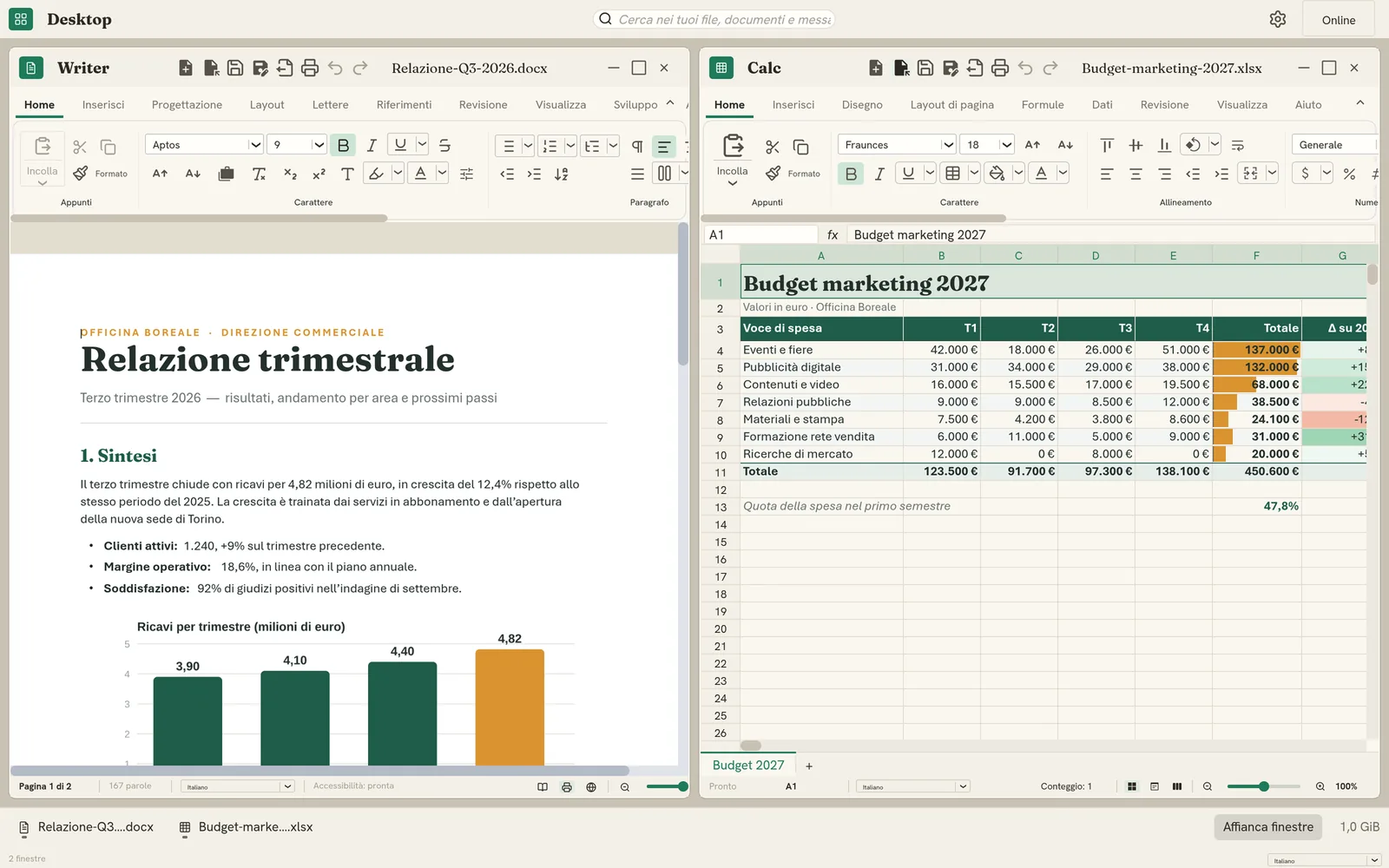
Palatys is not a seventh app: it is another way of using the six. Each window holds the real app — the same one you would open in its own tab — and you move, resize, minimize and arrange the windows as on a computer desktop.
This guide covers how to get there, the window gestures, the memory the windows use, and what Palatys does not do yet.
In this guide
What you'll learn.
Getting started
What Palatys is, how to open it and set it up, and how to use the Start menu.
Open the guide 2Icons, shortcuts and pinned apps
Arrange the icons the way you like, rename them, put the Aerarys files and folders you use most on the desktop, and keep your apps on the taskbar.
Open the guide 3Working with windows
Open apps, switch between windows, move and resize windows, minimize, maximize and close them, snap them to the edges and to layouts, use the taskbar and tile the windows.
Open the guide 4Using Palatys from the keyboard
Switch between windows, minimize, maximize, move and close them, and reach the icons and the taskbar without the mouse — also with a screen reader.
Open the guide 5Notifications and badges
The numbers on the taskbar buttons, the notices of what arrives and of calls, the notification center that gathers them, Do not disturb and system notifications.
Open the guide 6Memory
How much memory each window reserves, and how minimized windows are unloaded to give it back.
Open the guide 7Current limits
What Palatys does not do yet, and how to work around it.
Open the guideProductivity, made in Italy.
Bring the whole suite to your team — simple, secure and entirely yours.